Now that you have set up your machine, we can continue to launching our Open WebUI instance.
Launching our Open WebUI instance
We will set up an Open WebUI instance, with LLMs running through Ollama. Ollama is a lightweight service that downloads, manages, and runs large language models, while Open WebUI provides a browser-based interface for interacting with those models through a chat-style UI. Together, they separate model execution from user interaction, making it easy to run and manage LLMs on a remote machine. We will run both services through Docker, which leads to a robust and replicable architecture. If you want to learn more about Open WebUI and Ollama and Docker, we provide additional information in this section. For now, we recommend you to continue with the set-up. We will need the following commands:
| Command | Function |
|---|---|
| mkdir | make a directory |
| nano | command-line text editor |
| cd | go into or out of a directory |
We can now set up and launch our Open WebUI instance.
- Create the directory for openwebui:
mkdir openwebui- Move into the openwebui directory:
cd openwebui- Create the docker compose file:
nano docker-compose.yaml, and paste the code below. You can then save the file withctrl O + enter, and exit nano withctrl X. These steps are displayed in the image below.
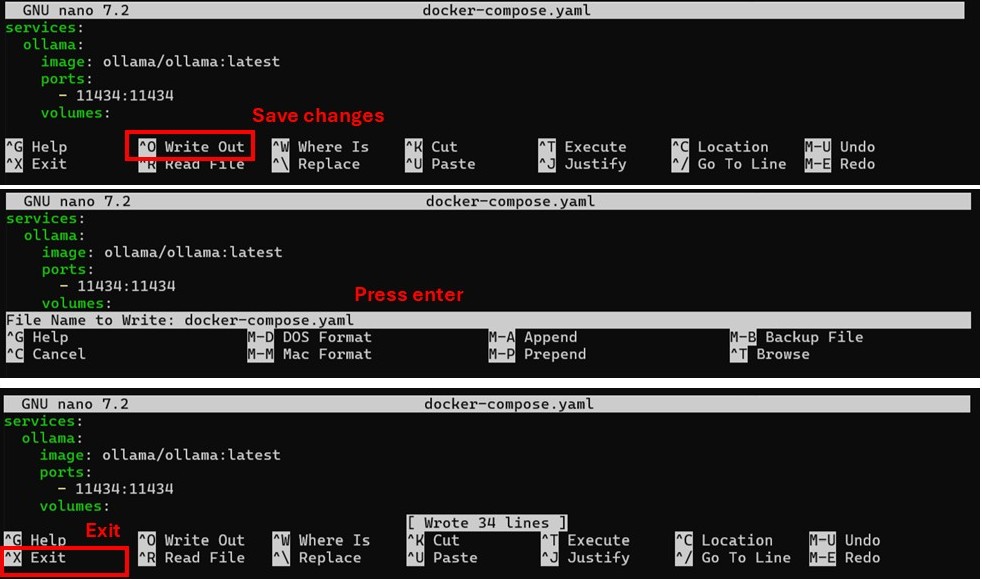
Now that we have set up the docker compose file, we are ready to launch our Open WebUI instance. The only thing you have to do is enter the command sudo docker compose up -d, which spins up the container in the background. Make sure you are in the openwebui folder when executing the command, be aware that this can take a few minuets. After the containers have started, you can verify that they are running with sudo docker ps. You can inspect the logs with sudo docker logs ollama and sudo docker logs open-webui.
services:
  ollama:
    image: ollama/ollama:latest
    ports:
      - 11434:11434
    volumes:
      - /home/ubuntu/ollama:/root/.ollama
    container_name: ollama
    tty: true
    restart: unless-stopped

  open-webui:
    image: ghcr.io/open-webui/open-webui:main
    container_name: open-webui
    volumes:
      - /home/ubuntu/data_openwebui:/app/backend/data
    depends_on:
      - ollama
    ports:
      - 3000:8080
    environment:
      - 'OLLAMA_BASE_URL=http://ollama:11434'
      - 'WEBUI_SECRET_KEY='
      - 'GLOBAL_LOG_LEVEL=DEBUG'
    extra_hosts:
      - host.docker.internal:host-gateway
    restart: unless-stopped
Here we describe the principal configuration options for Open WebUI that are set in the docker compose file.
- volumes: here we specify where the data will be stored, in our case in a folder
data_openwebui- depends_on: this makes sure that Ollama starts before Open WebUI starts
- ports: we choose to map the port 8080 in the container to port 3000 on the machine. Therefore, our Open WebUI will be available on port 3000.
- environment: here we specify where Ollama is running. We could also secure our application more tightly by specifying a secret key.
Accessing the Open WebUI instance
Now we can access our Open WebUI instance at the following address: http://<YOURIP>:3000. Here, you can set up your login credentials, and start your first chat.
- Access your Open WebUI instance at
http://<YOURIP>:3000, and set up your login details.- Now you can try to load a model from Ollama, by clicking on the model selection button, entering the name, and choosing Pull from Ollama.com. Given that you currently have no access to GPUs, a CPU-only model you can choose is
qwen2.5:0.5b. Congrats! You have now set up your very own LLM interface! Take some time to look around and explore the possibilities.
Next step
Now you have set up your Open WebUI instance, with a local Ollama as a backend. You may have noticed that chatting with the CPU only LLM goes rather slow. This is common, as more powerful hardware is needed for speedy inference. In the next section, we will add an OpenAI-compatible API endpoint to our Open WebUI. This will allow us to run larger models in our chat interface.
Author: Alexander Sternfeld